
Computer Vision
Image Detection looks for one exact picture. Computer Vision looks for a kind of thing. Point it at a model that knows what a car is and it will find cars, whatever colour they are, whichever way they are facing, at whatever size they happen to be drawn. That is the whole difference, and it is the reason to reach for it: when the target changes appearance between runs, a template stops working and this does not.
The trade is cost and certainty. A model is slower than template matching, it has to be downloaded, and it answers with a confidence rather than a yes. Reach for first, and come here when the thing you are hunting refuses to hold still.
Experimental, and Premium. How well it detects varies a lot between devices and between models, and the way the action works may still change between updates. That is exactly why it sits on rather than Pro: the people who get it first are the ones closest to us, who will tell us when it breaks. There is a Share feedback link in the action for that.
The vision engine
The code that runs models is not part of the app download, so the first time you open a Computer Vision action you will be asked to fetch it. It is a few megabytes, it happens once, and every macro on the device shares it afterwards.
It arrives through Google Play, so a copy of MacroForge installed from anywhere else cannot download it. If the engine is missing when a macro tries to run, the run stops with a message telling you to open a Computer Vision action and get it, rather than failing silently halfway through.
Choosing a model
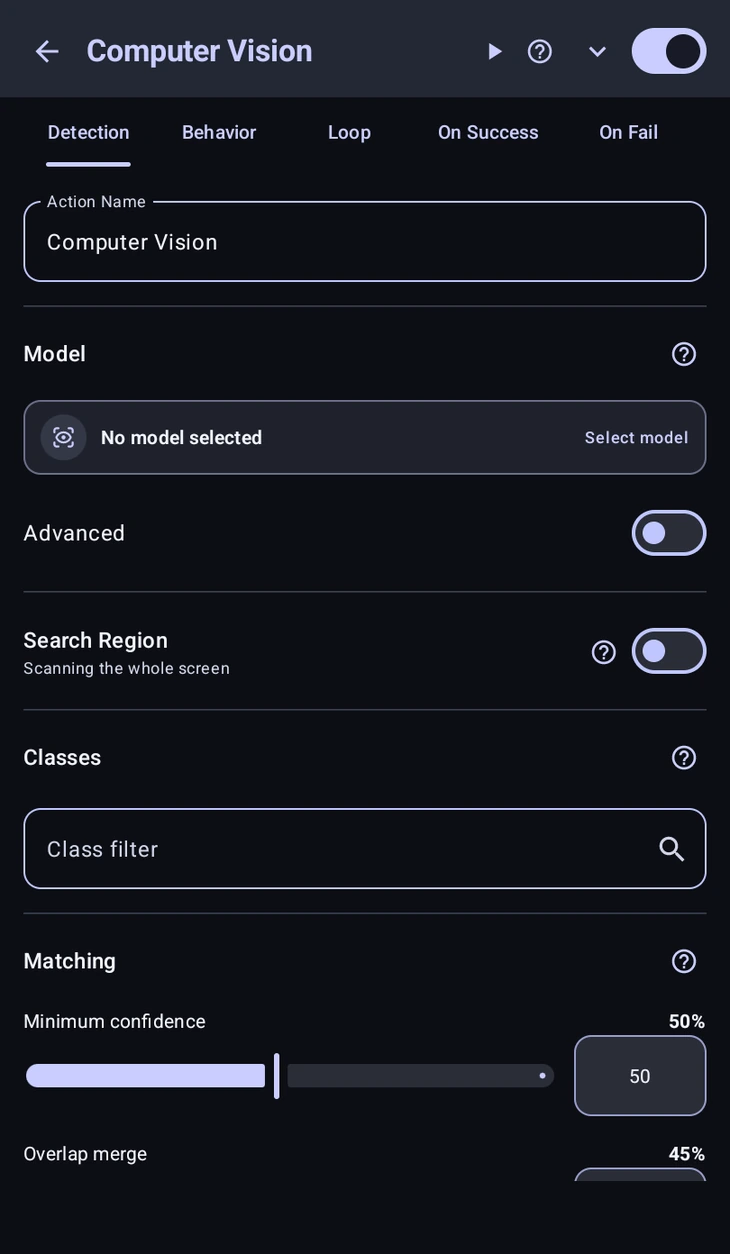
Model is the first thing to set, and Select model opens the catalogue. It has two tabs:
- Installed, what is already on this device.
- Browse, the presets we maintain. Each one shows how many classes it knows and what input size it runs at, and downloads on demand. Tap one for a details page before committing to the download.
Import model takes your own file instead. ONNX (.onnx) and pre-optimised mobile models (.ort) are what it accepts, up to 512 MB; export from YOLO, PyTorch or TensorFlow to ONNX first. An imported model is copied into the app rather than referenced where it sits, so it still loads while a macro runs in the background.
Advanced swaps the picker for a text field, which means the model can be chosen while the macro runs. Put a %variable% in it and one action can run a different model depending on what the macro worked out earlier.
The catalogue is deliberately small for now. If the model you need is not in it, open a support ticket on the Discord and say so, there is a free month of Premium in it if it is a good fit and we add it.
Classes
A model reports a class name for every box it finds, and Class filter is how you narrow that down. List the ones you care about, comma-separated, and leave it empty to accept all of them. Matching ignores case. The detail page for each model lists the classes it knows, so you are not guessing at spelling.
Search region
Off by default, which means the whole screen. Turn it on to scan inside a box instead. Worth doing for the same reasons it is worth doing on , it is faster and it stops the model finding the right kind of object in the wrong part of the screen. Region scaling works the same way here as everywhere else, see .
Behaviors
- Wait till appear, pause until something matching is on screen.
- Wait till vanish, pause until nothing matching is left.
- Click best match, tap the highest-confidence detection.
- Click multiple matches, tap every detection that passed. Max clicks caps how many, where
0means no limit, and the order is highest confidence first.
Matching
- Minimum confidence: the score a detection has to beat. Raise it when the action fires on the wrong thing; lower it when a real target is being missed. This is the dial you will actually spend your time on.
- Overlap merge: removes duplicate boxes drawn over one object. Raise it when the same thing is reported twice.
- Max detections: how many boxes to keep at most.
- Timeout (ms): how long to keep scanning before giving up.
- Scan rate (per second): how often to re-run the model while waiting.
Scan rate and the model's input size are what cost battery. A smaller input size is much faster and slightly less accurate, which is usually the right trade on a phone.
Test on screen
Test on screen runs the model once over the live screen and boxes everything it finds. The summary tells you how many of the detections actually matched your filter and confidence (3 of 7 match), how long the pass took in milliseconds, and, crucially, how many fell below your confidence bar.
That last number is the one to watch. If the model is finding your target but reporting it at 0.38 while your bar sits at 0.5, the fix is the bar, not the model. Without this you would be guessing.
Save Result To Variable
Name a variable and the action stores its best detection, with the same parts every detection writes plus three of its own:
%name.label%, the class it decided on.%name.conf%, how confident it was,0to1.%name.count%, how many detections passed in total.
Position and bounds come through as usual, so %name.x% and %name.y% are the centre of the box. Guard on %name.found% before reading any of it, exactly as described under .
Sharing a macro that uses it
Someone installing your macro needs the same pieces you had. MacroForge checks that for them on install and offers to fetch what is missing: the engine if they have never used Computer Vision, and any preset models your macro names.
An imported model is the exception, and it is worth knowing before you publish. It lives on your device and nobody else's, so a macro pointing at one will tell the installer they have to choose their own model in the action. If you intend to share the macro, build it on a preset.