
Image detection
Image detection scans the screen for a specific template.
Search Region
 The Search region limits where the app is allowed to look for the template. Make sure your template or color can be found inside this search region, otherwise the image detection will always fail. To increase performance and prevent false positives keep the search region as small as possible.
Use the
The Search region limits where the app is allowed to look for the template. Make sure your template or color can be found inside this search region, otherwise the image detection will always fail. To increase performance and prevent false positives keep the search region as small as possible.
Use the  preview button to preview your search region on the screen.
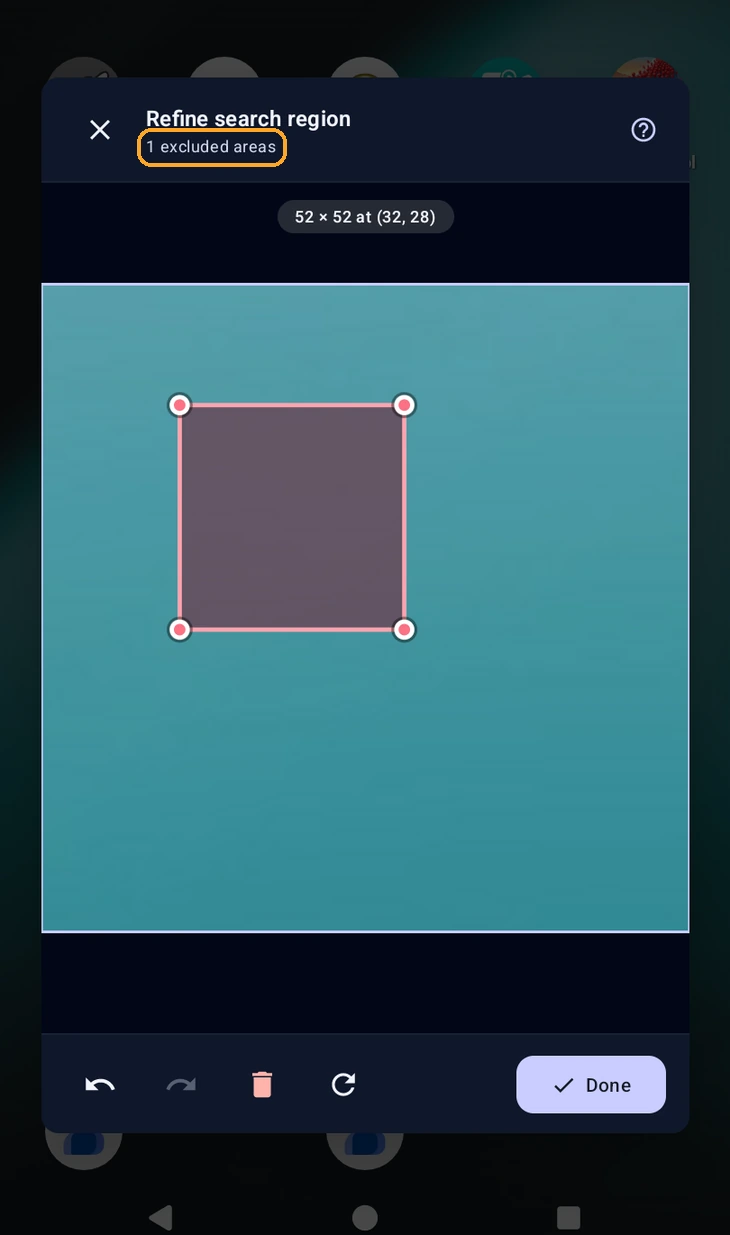
Excluding areas inside the region
After picking a region, Exclude areas lets you cut out parts that template matching should ignore: drag on empty space to add a cutout, and tap one to move, resize or delete it. You can add up to 32.
Use it when the target shares its area with something that moves, such as a list scrolling behind a fixed header or a timer in one corner.
Cutouts belong to the region, so clearing the region clears them. They apply to template and colour matching only; the ignores them.
Note: If you run your macro on different devices, make sure to read about .The Template
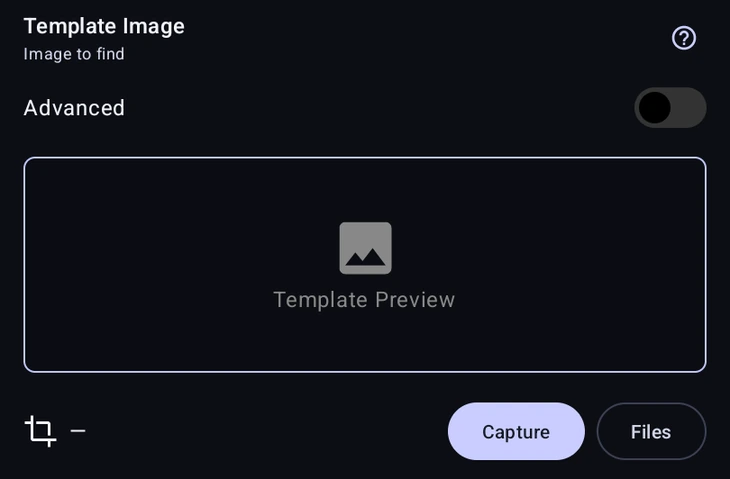 To start, you need a template. You can capture a new template directly from your screen by pressing the capture button, or you can pick one from your
  .
.
Capture takes a fresh one off the screen and opens the ; Files picks an image already on the device. Either way the crop icon beside the preview reopens that editor later.
Advanced swaps the picker for a text field, so the template is chosen while the macro runs rather than while you are building it. Put a %variable% in it and one detection can hunt for a different image depending on what the macro worked out earlier. It is the same idea as the action’s Advanced reference.
Settings
- Timeout: How long the action should keep searching before giving up (in milliseconds).
Tip: A timeout of
0does one immediate check. Back-to-back detections set to0ms share one screenshot, which is faster and saves battery. - Min Score: The required match confidence (0% to 100%). Usually, 80-90% is recommended.
- Strict Matching: Also checks colour and detail, which prevents false positives on flat backgrounds or similar icons in different colours. In GScript, pass
{ strict: true }(orstrictMatching: true) in options. - Scan rate (Hz): How many times per second the engine should re-scan the screen while waiting. Lower rates save battery; higher rates react faster. 5Hz is almost always fast enough.
- Fast Scan: Speeds up matching. On by default on phones and off on emulators; turn it off if a detection misses targets. In GScript, pass
{ fastScan: true }(orfalse) tofind; omit it to use the device default.
Behaviors
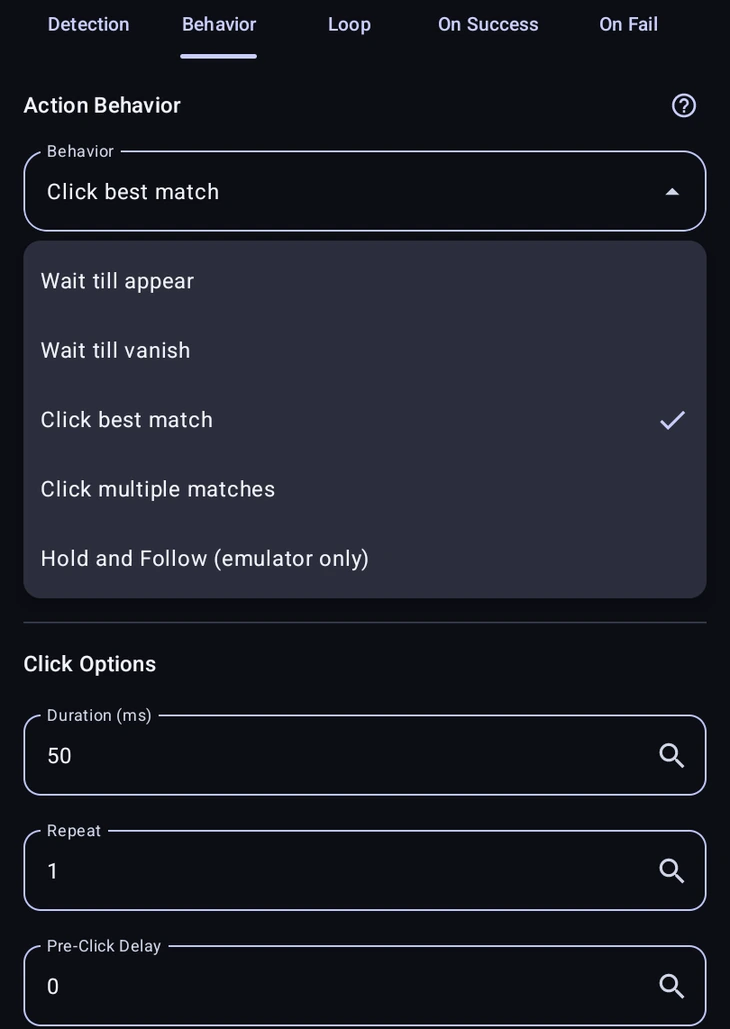
What should the macro do when it finds the image?
- Wait till appear: Simply pauses the macro until the image is found on the screen. Succeeds if found; fails if the timeout is reached.
- Wait till vanish: Pauses the macro as long as the image is on the screen, and continues when it disappears. Succeeds if it vanishes; fails if the timeout is reached.
- Click best match: Clicks the center of the best matching result. Succeeds if a match is found and clicked; fails if the timeout is reached.
- Click multiple matches: Finds every instance of the image that meets the
Min Score, and clicks all of them. Succeeds if at least one match is found; fails if none are found before the timeout. - Hold and Follow: Presses on the target and follows it as it moves, until a stop condition is met. Covered below.
Click Options
Any behavior that clicks gets the same timing controls: Pre-Click Delay and Post-Click Wait for pauses either side of the tap, Duration (ms) for how long the press is held, Repeat for how many taps, and Random Radius (px) to scatter the tap point a little.
Click multiple matches adds two more under Multi-Match Options:
- Max Matches: How many of the matches to click.
0means no limit, click every one it found. - Click Order: Which order to click them in. Best score first starts with the strongest match, Top to bottom and Left to right work through them by position, and As found applies no sorting. Position order suits lists; score order suits cases where only the first click matters.
Allow Rotation
Templates normally have to appear at the same angle you captured them. Turn on Allow Rotation and MacroForge will also look for turned versions of the image, useful for dials, compass needles, or anything that spins.
You set the sweep yourself with Start Angle, End Angle, and Step Size. Going 0 to 360 with a step of 90 checks four angles: 0, 90, 180 and 270. Smaller steps catch more positions but cost proportionally more work, so start coarse and tighten only if you're missing matches.
Hold and Follow
For moving targets. The finger presses on the match and moves with it, for example to drag an item that drifts. It is marked emulator only; on real phones it may work but is slower and less reliable.
- Follow Duration (ms): How long to keep following before giving up.
- Stop Following When: What ends the hold, Duration reached, Target enters region (with a Stop Region written as
x, y, w, h), or Target is lost. - Max Jump (px): How far the target may move between checks before MacroForge decides it lost it. Stops the finger from teleporting to a lookalike elsewhere on screen.
- Lost Grace: How long a target may go missing before it counts as lost, so a single bad frame doesn't end the follow.
- Search Zoom (x target size): How much area around the last known position to re-search. Bigger keeps up with faster movement; smaller is quicker.
- Loop (ms): How often to re-check the target's position.
These are under Advanced Engine Tweaks. Leave them alone unless you know what you are changing. If a follow loses its target, try a smaller search region before a bigger Max Jump.
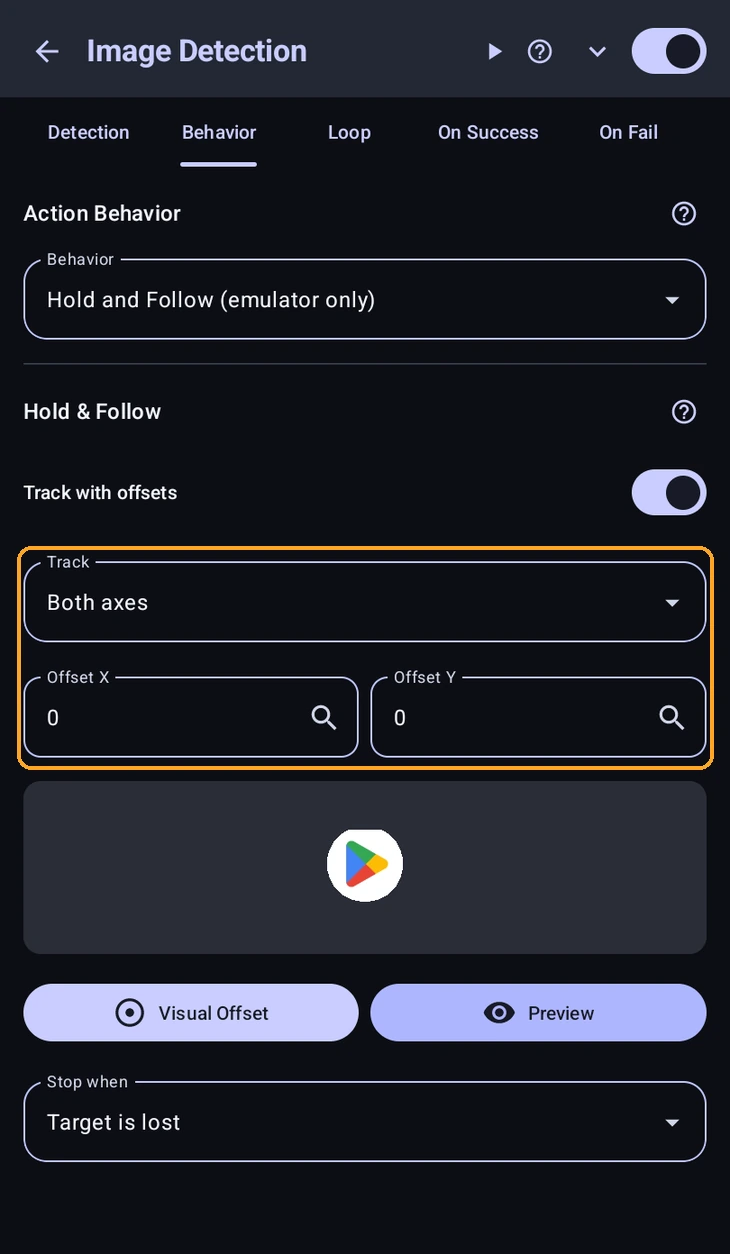
Track with offsets
By default the finger presses the centre of the match and follows it on both axes. Track with offsets changes both.
- Track: Both axes, X only or Y only. Limiting it to one axis keeps the drag in a straight line, for sliders and scrollbars.
- Offset X and Offset Y: move the contact point away from the centre of the match, in pixels. The offset follows the target. Use it when the part you must press is next to the part you can detect, like a drag handle beside an icon.
Both fields accept the . Visual Offset lets you place the contact point on the live screen.
Loops
You can configure the detection to loop based on its result:- Loop on success: Repeats if the detection succeeds (returns true).
- Loop on fail: Repeats if the detection fails (e.g., times out).
- Loop always: Repeats regardless of the outcome.
- Loop Count: The number of additional repeats to perform. For example, a loop count of
1means it runs once, then repeats 1 time (2 total iterations). Use-1for infinite loops.
Note: When nesting actions inside a loop, you can use the and actions to control the execution flow.
Nested Actions (On Success & On Fail)
Image Detection has On Success and On Fail tabs for nested actions:
- On Success: Executes if the detection succeeds (returns true).
- On Fail: Executes if the detection fails (e.g., times out).
Save Result To Variable
Name a variable at the bottom of the Detection tab to store where the detection matched. On a hit it holds:
{ "found": true, "x": 540, "y": 960, "cx": 540, "cy": 960,
  "left": 490, "top": 910, "right": 590, "bottom": 1010,
  "w": 100, "h": 100, "conf": 0.98 }
On a miss it holds only { "found": false }.
In any field, read a part with %startBtn.x% or %startBtn.conf%. In a action, getVar("startBtn") returns the whole thing, with .point and .click() on it:
let m = getVar("startBtn");
if (m.found) m.click();
Only read coordinates where the detection is known to have succeeded, inside On Success, or behind a on %startBtn.found%. An unresolved %startBtn.x% counts as 0, which taps the corner of the screen. In script, guard with if (m.found), not if (m). The value is an object either way.
Best Practices
- Keep templates small: A small template with distinct features matches faster and gives fewer false positives.
- Keep search regions small: Limit the region to where the image can appear. It is faster, uses less battery, and avoids matching a similar image elsewhere.
Code Equivalent
let region = new Region(100, 100, 500, 500);

// Wait up to 5000ms for "enemy", requiring 70% match score
let match = region.find("enemy", { timeout: 5000, scanRate: 5, minScore: 0.7 });

if (match) {
    match.click();
    // swipe(match.x, match.y, 500, 500); // Or any other action.
} else {
    // Fail
}

// Or simply check if an image exists on the whole screen immediately
if (exists("menu_button")) {
    console.log("Menu is open!");
}