

Recording
Recording captures your taps and swipes as you perform them and replays them. Useful for menu paths or combos that are tedious to build from coordinates.
Recordings belong to the macro you made them in. A macro can hold as many as you like, and each Recording action picks one to play.
Making a recording
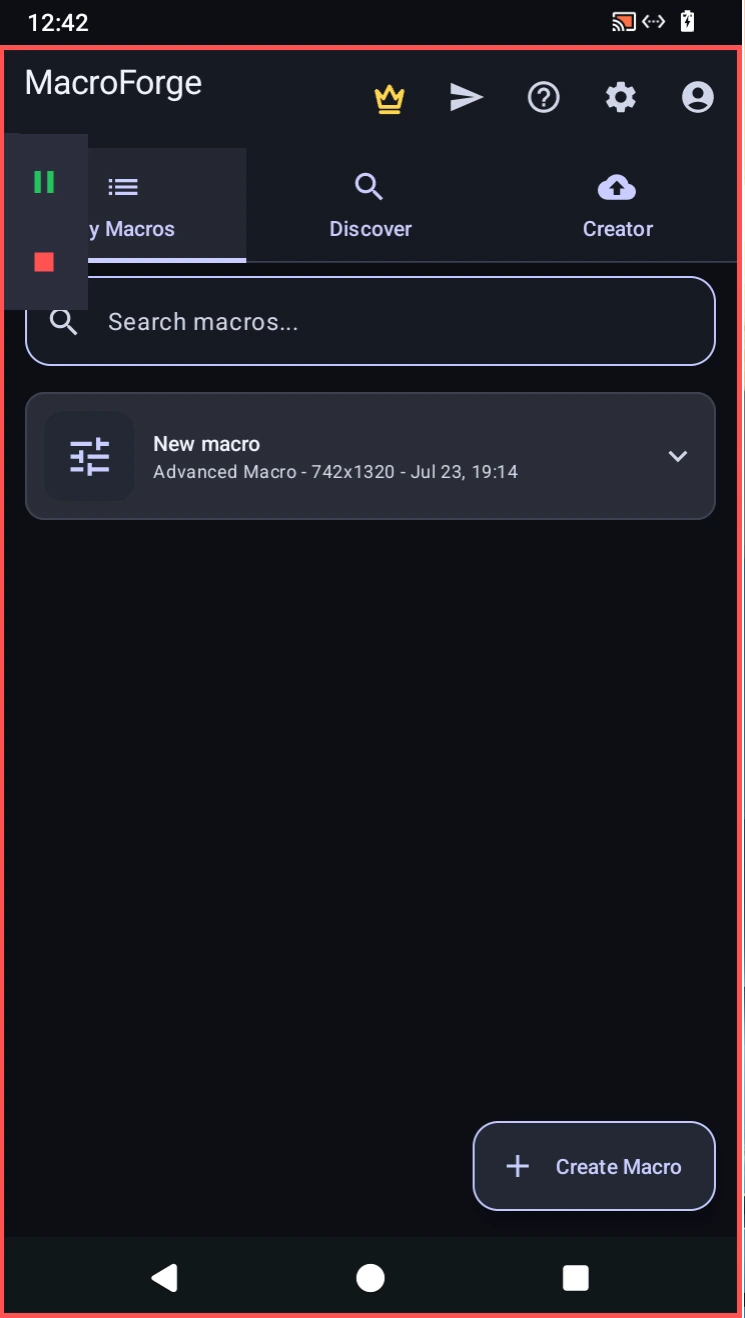
Add a Recording action and press Record. The editor steps aside, a red border marks that you are recording, and a small control in the corner gives you pause and stop. Every tap and swipe is captured, including the waits between them.
Press stop to see Review recording, a list of what was captured. Keep it to save it to the macro, or press Discard.
Editing the steps
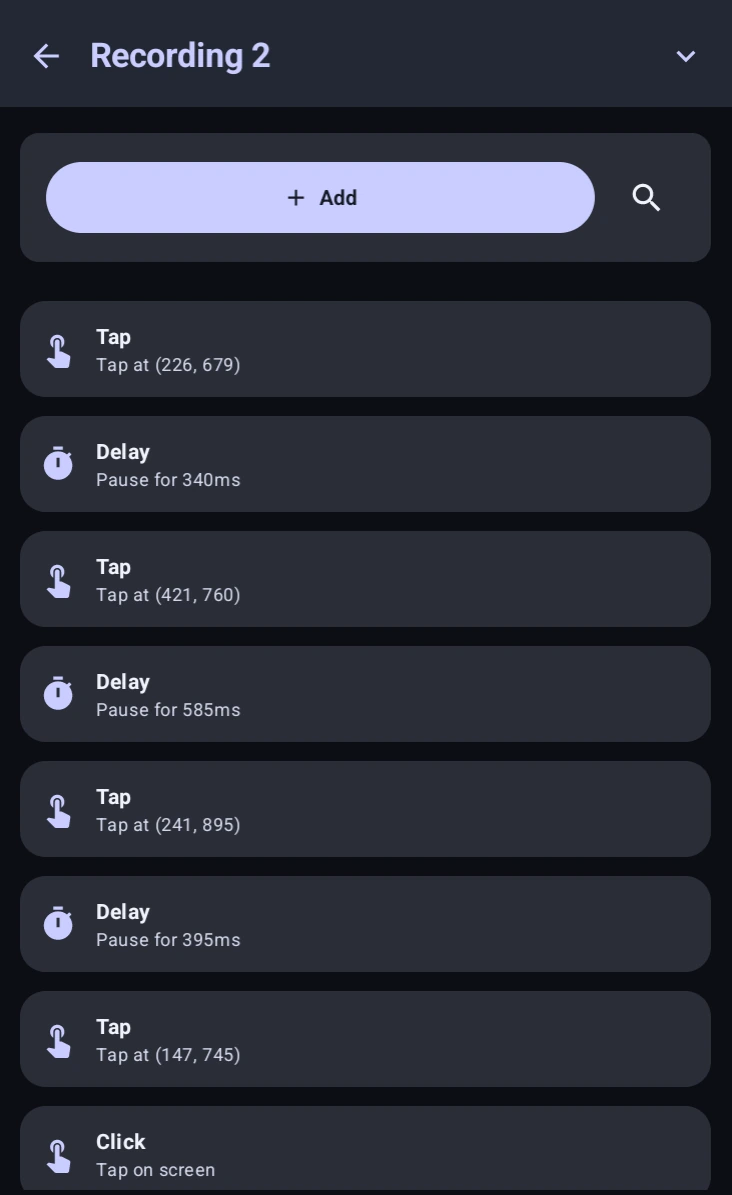
A saved recording is not frozen. Every step is a row, Tap with its coordinates, Delay with its length, Swipe with its path. Tap one to edit it, or use Add to insert a click, swipe or wait by hand. Steps copy, paste, delete and move, so one bad tap doesn't mean recording it all again.
A common approach is to record roughly, then fix the timing in the list.
Playback settings
Recording Name labels the action. The Recording dropdown picks which saved recording to play, with its step count shown underneath. Manage opens the Recording Manager, holding every recording in the macro.
Advanced replaces the dropdown with a text field, so the recording is chosen while the macro runs. Enter a recording name, or a %variable% that holds one. The  button lists your recordings and variables.
Use this with the : point a Record row and a Recording action's Advanced field at the same variable, and the macro plays back a gesture the user recorded on their own device.
If the field is blank or names a recording that does not exist, the action plays nothing and the macro continues. The shows a warning with the name you used and the recordings that exist.
Repeat
- Repeat Count: How many times to play it. Use
-1to repeat forever. - Delay Between Repeats (ms): A pause between one pass and the next.
Timing
- Playback Speed (×):
2plays it twice as fast,0.5at half speed. Handy when you recorded at a comfortable pace but the app can keep up with more. - Start Delay (ms): Waits before the first step.
- Post Wait (ms): Pauses after the last one.
- Randomize Timing (±%): Varies each wait and hold by up to this percent, so the same recording never plays back identically twice.
Position
- Randomize Tap Position (±px): Jitters each replayed tap by up to this many pixels.
Small values are enough for both randomize settings: a few pixels and a few percent.
Stop and Pause work during playback.
Code Equivalent
// Play a recording by name, with the same options the action exposes
Record.play("Recording 2", { repeat: 3, speed: 1.5, randomization: 4 });

// Check what this macro has before playing it
if (Record.exists("Opening menu")) {
  Record.play("Opening menu");
}
See the for the full option list. A script can play its own macro's recordings but cannot capture new ones.