

UI Element
UI Element finds buttons, labels and input fields by asking Android what is on screen instead of looking at pixels. A button found by its text keeps working when the app changes colour, layout or theme.
It only works in regular apps. Games draw their own screen, so use there.
Match tab
Action Name: The label shown in your action list. Name it after the intent, like Tap Continue.
Search Region: Off by default, searching the whole screen. Turn it on to limit the search to a box. Elements whose centre is outside it are ignored, which helps when the same text appears twice. Draw it with Pick Region, type it as x, y, w, h, or point it at a variable. It only applies at run time; the element picker always shows the whole screen.
Match element
List one or more conditions; the element must match all of them. One is usually enough.
Each row has three parts. First, which attribute to look at:
- Text: The element's visible text.
- Label (content description): Its accessibility label. This is how icon-only buttons get named, so it is often the only thing a back arrow or a menu button has.
- View ID: The app's internal id for that element. The most stable option by far. It survives app updates and different screen sizes.
- Type: The kind of element, like
EditTextorButton. Use it when there is no text, label, or id to grab.
Then how to compare it:
- Contains: Matches if your text appears anywhere in the value. Forgiving, and the right default.
- Exact match: Only matches the whole value. Use it when Send would otherwise also match Send money.
- Starts with: Matches from the beginning of the value.
- Matches pattern (regex): A regular expression, like
\d+ new messages. For when the text changes every time.
And finally the value you are looking for. Press  Add condition for another row, or the
  beside a row to remove it.
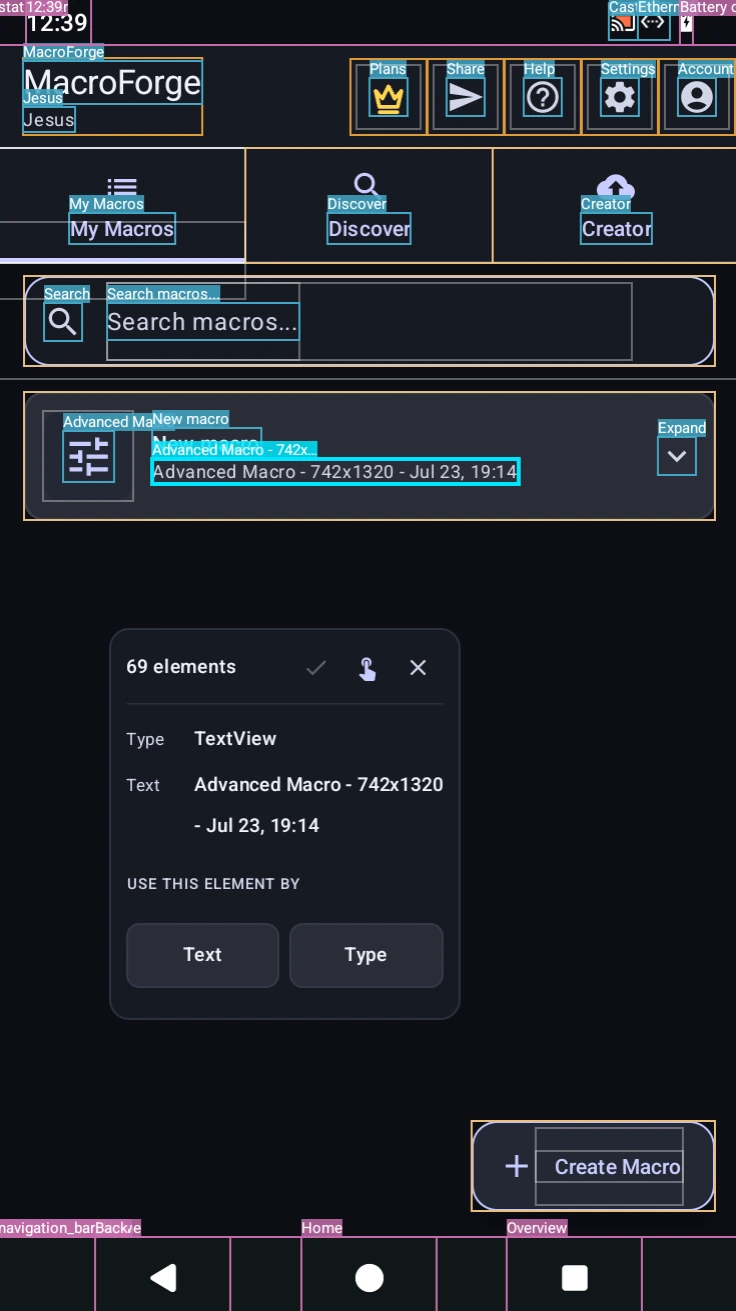
Pick element on screen
Tap Pick element on screen to box every element MacroForge can find, with a count. Tap one to see its type and text, then choose Text or Type under USE THIS ELEMENT BY to fill in the condition.
If it finds zero elements, the screen is drawn as an image; use image detection instead.
Match number: When several elements match, this picks which one to use. 1 is the first, counted top to bottom and then left to right. Useful for picking, say, the third row of a list.
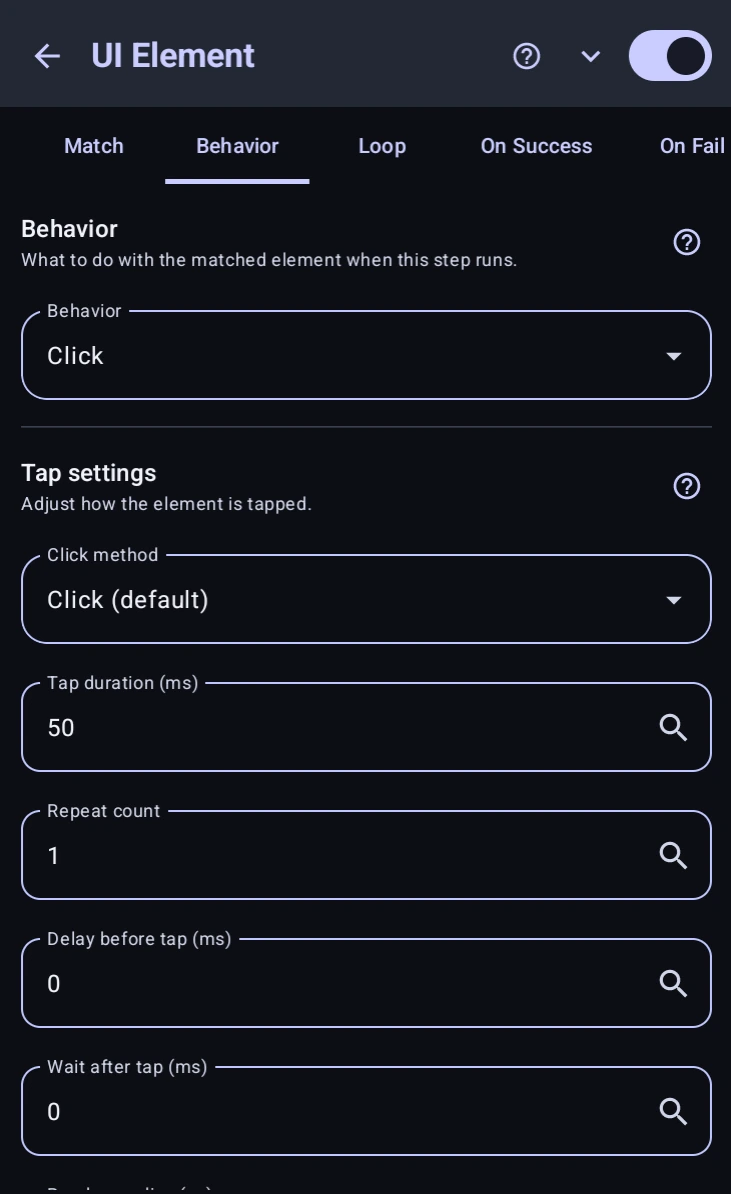
Behavior tab
Behavior decides what happens once the element is found:
- Click: Taps it. Tuned in Tap settings below.
- Read element into variable: What to read picks between Text or label, Slider / progress value, and Screen position (x, y). Position stores
"x, y"plus separate_xand_yvariables, for clicking or swiping relative to it. - Type text: Enters text into an input field. Text to type holds the text, Type mode chooses Replace existing text (clears first) or Add to existing text (appends), and Press Enter after typing submits the field afterwards, like tapping search or send on the keyboard. That last one needs Android 11 or newer.
- Scroll into view: Scrolls a list until the element is visible. Scroll direction offers Auto (down, then up), Down / forward, and Up / backward. Scrolling does not tap it. Put a Click in On Success for that.
- Wait for element: Pauses until it shows up or goes away, set by Wait until (Until it appears / Until it disappears).
- Check state: Tests a state and stores true or false. State to check offers Is present, Is checked (a switch or checkbox is on), Is enabled (not greyed out), and Is selected. The answer also decides which branch runs.
- Set slider value: Drops a slider or progress bar straight onto a number via Value to set.
- Count matches into variable: Counts how many elements matched and stores the number. Good for "how many unread rows are there".
Tap settings
These only show up for a Click.
- Click method: Click (default) presses the screen at the element's centre like a real finger. Element click (direct) fires the element's own click instead, so it cannot miss and still works when something is partly covering it, but it ignores duration and random radius, because no finger is involved.
- Tap duration (ms): How long the press is held. Turn it up and you get a long press.
- Repeat count: How many taps.
- Delay before tap (ms): Waits before each tap.
- Wait after tap (ms): Pauses afterwards, which is usually where you give the app time to react.
- Random radius (px): Scatters the tap point by up to this many pixels for a more human-looking press.
Timeout (ms): At the bottom of the tab. How long to keep looking before giving up and taking the On Fail branch. Leave it at 0 to check once and move on.
Save Result To Variable
Name a variable here and the action records where the element was matched. On a hit it holds:
{ "found": true, "x": 540, "y": 960, "cx": 540, "cy": 960,
  "left": 300, "top": 920, "right": 780, "bottom": 1000,
  "w": 480, "h": 80, "text": "Continue" }
On a miss it holds only { "found": false }, Read a part in any field with %name.x%, or the whole thing in a action with getVar("name").
This is separate from the Read, Check and Count variable on the Behavior tab: that one holds the element's value, this one its position. You can use both.
Loop, On Success and On Fail
The Loop tab repeats the whole action: Run Once (No Loop), Fixed Loop Count with a Number of Loops, or Infinite Loop. A Time Limit (ms) caps how long it may keep going, and 0 means no limit.
On Success and On Fail hold whatever actions should follow, exactly like image detection. A found element also fills , so a script in the On Success branch can read where it was.
Worth knowing: a match means the element was located, not that the tap worked. If the element is found but the tap lands on something covering it, the action fails and lastMatch() still reports the element.
Code Equivalent
is this action from a script. Every option is shown here with its default:
// Finding, all selector options
Element.text("Continue", {
  exact: false,       // match the whole value, not part of it
  startsWith: false,  // match from the beginning
  regex: false,       // treat the value as a pattern
  index: 1,           // which match, counted top to bottom
  clickable: false, enabled: false, editable: false, checked: false
});

// Clicking, all click options
Element.id("com.app:id/submit").click({
  method: "GESTURE",  // or "ACTION" for the element's own click
  duration: 50, repeat: 1, delay: 0, waitAfter: 0, radius: 0,
  longPress: false, timeout: 5000
});

// Reading and counting, timeout 0 checks once and moves on
let total = Element.id("com.app:id/total").read({ timeout: 0 });
let value = Element.type("SeekBar").readValue({ timeout: 0 });
let boxes = Element.type("CheckBox").count();

// Typing
Element.type("EditText").type("hello", { append: false, enter: true, timeout: 5000 });

// Scrolling and sliders
Element.text("Terms").scrollTo({ direction: "AUTO", timeout: 5000 });
Element.type("SeekBar").setValue(50, { timeout: 5000 });

// Waiting and state
Element.text("Loading").waitGone({ timeout: 10000 });
if (Element.label("Notify").isChecked({ timeout: 0 })) { /* ... */ }

// Several attributes at once, every one must match
Element({ type: "Button", label: "Notify", exact: true, index: 2 }).click();
Matching is contains by default, like this tab. Full details on the page.