
The AI tools
MacroForge can write parts of a macro for you.
Both are features, and both are marked with the  sparkle icon wherever they appear.
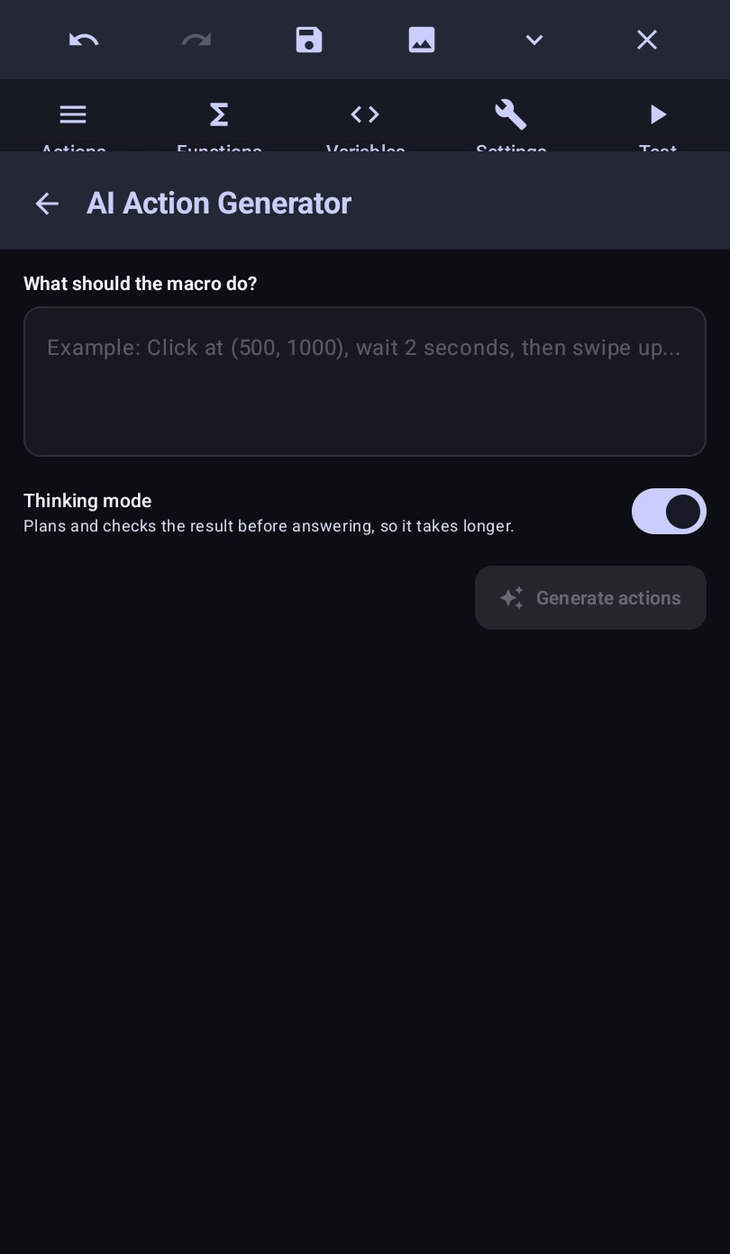
AI Action Generator
In the , describe what the macro should do and it builds the actions. "Click at (500, 1000), wait 2 seconds, then swipe up" comes back as three real actions in your list, configured, which you can then open and adjust like anything else.
It works in both the basic and the advanced editor.
Thinking mode makes it plan and check its answer first. It is slower; use it for branching or longer sequences.
AI Action Editor
Select some actions first and the same button becomes an editor instead of a generator. Now the prompt is about changing what you picked: "increase delay by 100ms for all actions", or "make these taps randomised".
You review what it proposes before it is applied.
Writing GScript
Inside a action the sparkle opens an assistant that writes or fixes GScript for you. It can also answer questions about the API.
The Visibility Condition field in the and variable expressions have their own AI button, which writes the format that field expects.
Getting good results
- Say what should happen, not how. "Wait for the reward popup and close it" gets further than naming actions you want.
- Give it real numbers. Coordinates, timeouts and thresholds it cannot know, it will invent.
- Check what it built. It is a starting point, not a finished macro, and it has never seen the app you are automating.
- Generate in pieces. Several small prompts beat one long one, and they are far easier to correct when one goes wrong.