

Working with actions
Every action is different, but they all share a set of behaviors: how they run, how they are configured, and how you manage them in the list.
The Execution Order
Macros run from top to bottom. This order can be changed with and logic actions, which allow the macro to skip sections or repeat steps.
Managing Actions in the Editor
You can select actions by holding down on any action in the editor list.
Adding actions: You can use the  Add Action button to add an action to your macro.
Reordering: To change the execution order, select an action and use the  or
or  arrows to move it up or down the list. You can also drag and drop actions (if the setting is enabled).
Duplicating/Deleting: Copy an action with the  button, and pasting it where needed with
  . Remove unwanted actions with the
  button.
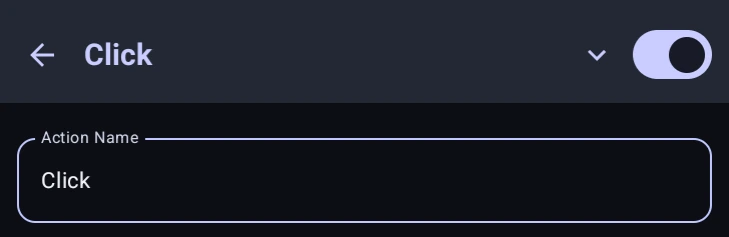
Disabling actions: You can toggle actions off without deleting them using the switch in the action configuration overlay. Disabled actions are skipped when the macro runs.
Renaming: Most actions can be given a custom label.
Action Parameters & Variables
Almost all actions require some configuration, such as how long to wait or what text to input. You can type fixed values into these input fields, or you can use by wrapping the variable name in percentage signs (like %myVar%). The value is filled in when the macro runs.
Action Hints: Tap the  icon beside a field for an explanation of it.