

The insert picker
Almost every text field in the editor has a small  button on its right. Tap it and the Insert panel opens with the variables, action results and utilities that fit that field.
What it offers
- Variables. Every variable in the macro. If you have none yet it tells you so; typing a name straight into the field creates it at run time.
- Results. The saved results of your detections. Pick a detection first, then the part you want. Empty until at least one detection has a Save Result To Variable name.
- Utilities. The built-in values described below.
- Points. The same utilities filtered down to X/Y positions. This is what a coordinate field shows instead of the full Utilities list.
- Regions. Anything shaped like a rectangle: Full screen, the bounds of a detection result, or a region variable.
- Presets, ready-made literal values for fields that have them, like the character sets on an OCR whitelist.
- Recordings, the gesture recordings saved on this macro, each with its step count. Shown on fields that name a recording, such as the action's Advanced reference.
- Scenes, the overlay scenes saved on this macro. Shown on fields that name a scene. If you have not built one yet it says so.
Only the categories that fit the field appear. A coordinate field offers Variables, Results and Points; an OCR whitelist offers Presets.
Recordings and Scenes insert a plain name, not a %token%, and replace the field's contents.
Use the search box at the top to filter.
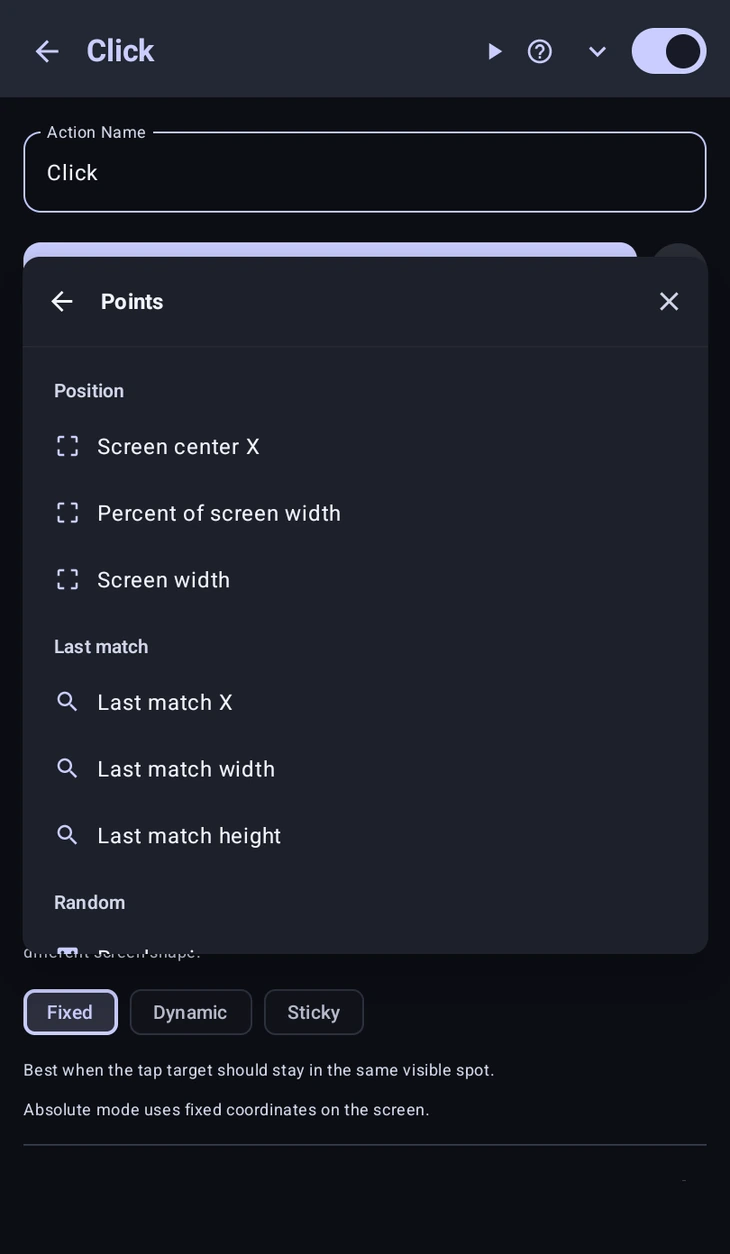
Built-in utilities
These are worked out each time the macro runs.
Position, where things are.
%region.centerX%/%region.centerY%. The middle of the action's own region.%region.randomX%/%region.randomY%. A random point inside it.%region.x%,%region.y%,%region.w%,%region.h%, its left, top, width and height.%region.pctX(percent)%/%region.pctY(percent)%. A percentage across the region.%screen.centerX%/%screen.centerY%,%screen.width%/%screen.height%,%screen.pctX(percent)%/%screen.pctY(percent)%, and%screen.orientation%. The same ideas for the whole screen.
Last match. The detection that ran most recently.
%last.x%/%last.y%, where it matched.%last.w%/%last.h%, how big the match was.%last.region%, its bounds as a rectangle.%last.found%, whether it matched at all.
Loop, %loop.index% for the current iteration and %loop.count% for the total. Useful for "wait a bit longer on each retry".
Random, %rand.range(min,max)%, %rand.int(min,max)% and %rand.bool%. Replace min and max with real numbers. If you leave them as they are, the token is not replaced and a warning is logged.
Time, %time.elapsed% (milliseconds since the macro started), plus %time.hour%, %time.minute%, %time.dayOfWeek% and %time.clock%.
Device, %sys.battery%, %sys.charging%, %sys.wifi%, %sys.currentApp% and %sys.clipboard%.
You can always type a token by hand instead of using the picker. It is only a shortcut.
Code Equivalent
Scripts don't substitute %tokens%, so in a action the picker inserts the GScript call instead:
Screen.getWidth();           // %screen.width%
CenterPoint().x;             // %screen.centerX%
region.centerX();            // %region.centerX%
region.randomPoint().x;      // %region.randomX%
lastMatch().x;               // %last.x%
Math.randomInt(1, 10);       // %rand.int(min,max)%
Math.randomRange(500, 1500); // %rand.range(min,max)%
getVar("myVar");             // %myVar%