

Resolution scaling
When a macro runs on a different screen size than it was built on, MacroForge translates its coordinates using Fixed scaling by default.
If taps land in the wrong place on another screen, try a different scaling mode. This only matters when the macro runs on a device with a different resolution or shape.
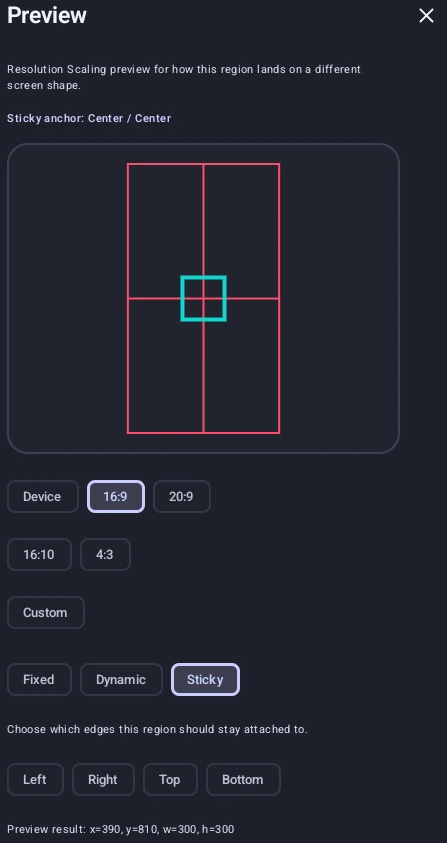
Preview Dialog
You can visually test how your points or regions scale using the preview tool:
- Tap the
 help button next to "Resolution Scaling" in the action config overlay.
 - Select a target aspect ratio preset (like
16:9,20:9,16:10,4:3) or input custom screen dimensions. - Choose your scaling mode and sticky edges (if applicable).
- The canvas will display a live visualization of how your coordinate or region shifts to fit the target screen size under the selected scaling mode.
Scaling Modes
Actions with a point or region, such as Click or Image Detection, have a Resolution Scaling section with three modes:
Fixed
- How it works: Best when the region should stay in the same visible spot. Coordinates scale evenly, keeping the original proportions without stretching.
Dynamic
- How it works: Best when the region should follow the screen size. It scales coordinates on the X and Y axes independently, stretching the interaction area to fill the target screen.
Sticky
- How it works: Best when the region should stay attached to an edge or corner. It anchors points or regions relative to chosen screen edges (Left, Right, Top, Bottom) rather than the center of the screen.
Sticky Edge Anchoring
When using Sticky mode, you can select which edges the element should cling to. Each axis (horizontal and vertical) resolves independently:
- Selecting only Left anchors the element to the left edge. Selecting only Right anchors it to the right edge.
- Selecting only Top anchors the element to the top edge. Selecting only Bottom anchors it to the bottom edge.
- Selecting both sides on the same axis (e.g. Left + Right, or Top + Bottom), or selecting neither, centers the element on that axis.
- You can combine horizontal and vertical edges freely, e.g. selecting Bottom and Right anchors the element to the bottom-right corner.
Code equivalent
// Scale a single point using the active scaling mode
let scaledPoint = Screen.scalePoint(540, 960);
console.log("Scaled coordinate: " + scaledPoint.x + ", " + scaledPoint.y);

// Scale a rectangular search region
let scaledRect = Screen.scaleRect(100, 200, 300, 400);

// Scale X or Y dimensions individually
let scaledX = Screen.scaleX(540);
let scaledY = Screen.scaleY(960);