

Test tab
The Test tab runs your macro from inside the editor, so you can check your actions, variables and logic without leaving it.
Starting a Test
Set the number of loops and press play. Test runs stop after 10 minutes.
Testing one action instead of the whole macro
Every action's config screen has a Test button in its header, which offers two options:
- Test entire macro. Exactly what the Test tab does, without leaving the action you are editing.
- Test this branch. Runs only the action you have open, along with anything nested inside it. A conditional runs its condition and the branch that wins; an action group runs its contents. Nothing before it runs, and nothing after it runs.
Use Test this branch to tune a single detection quickly. Nothing before it runs, so variables set earlier in the macro keep their last value (or are empty in a fresh editor session). Test the whole macro when the action depends on them.
Inside a detection's success or failure tab, the sheet names the branch it will run.
Emergency Stop
If your macro ever goes out of control during a test or a normal run, you can instantly force-stop it by pressing your device's physical Volume Down button.
Debug Mode
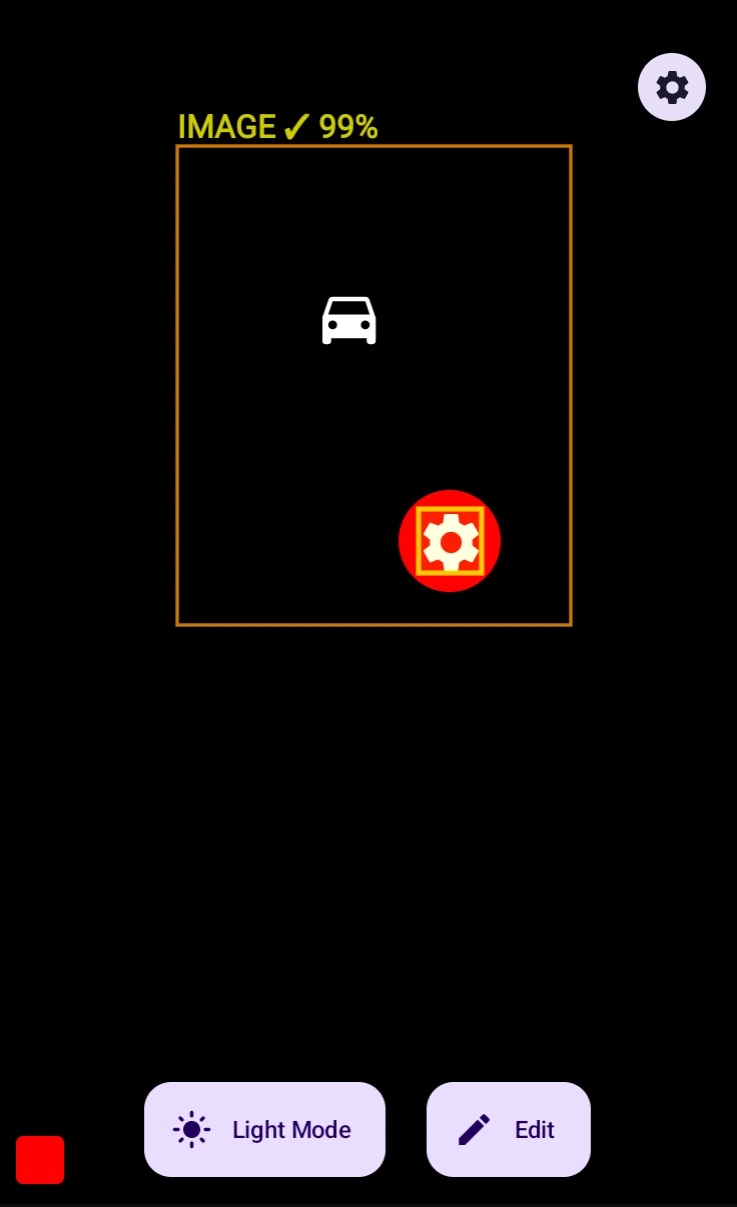
Flip on Debug Mode before you start the test and MacroForge draws what it is looking at, live, on top of whatever app you are automating. Every detection gets a box around the area it searched, with a label above it telling you what happened:
- IMAGE in yellow for template matching, COLOR in cyan, TEXT in green for OCR, and UI for element matching.
- A ✓ or ✗ for whether it found anything.
- The match score as a percentage when it did, so
IMAGE ✓ 99%means a near-perfect match andIMAGE ✓ 62%means it scraped past your threshold.
Watch that percentage: a detection that fails now and then usually scores just above its threshold on good runs.
You can only change the toggle while the test is stopped. It also turns on failure screenshots in the logs, so leave it off for normal runs.
Execution Logs
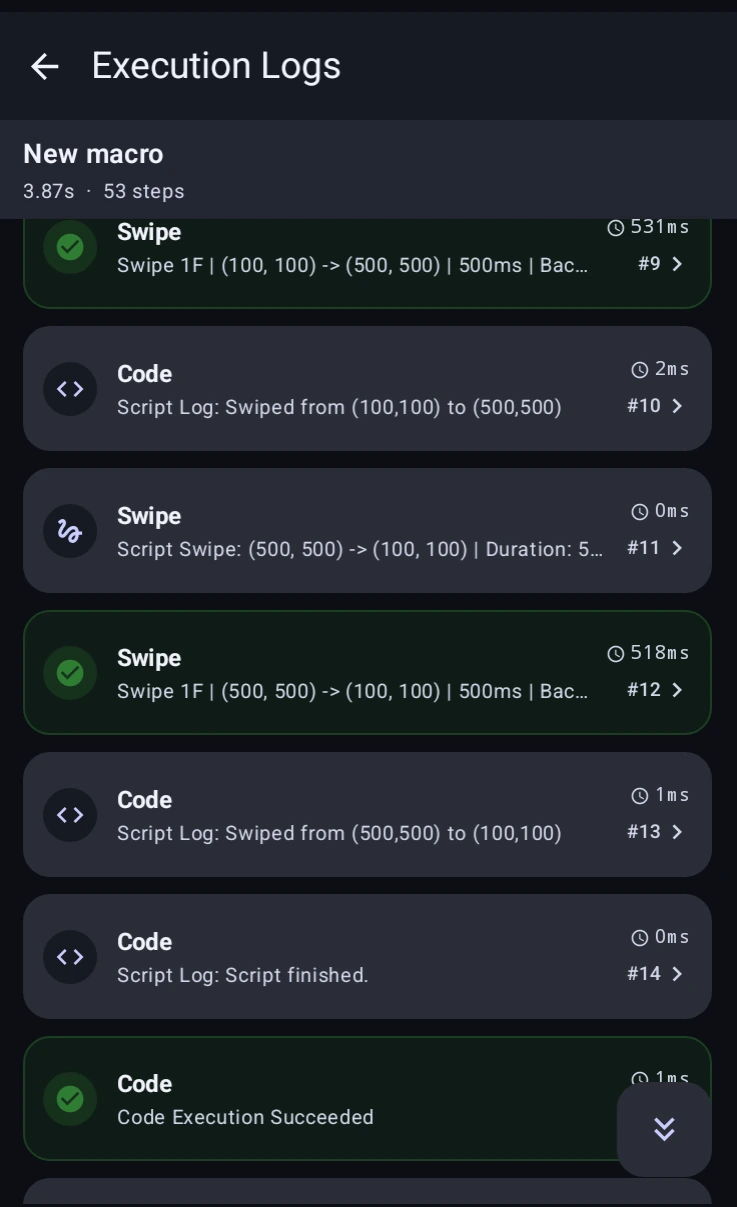
Every test writes an Execution Log, opened with the Open Execution Logs button in the Test tab. The header tells you which macro ran, how long it took, and how many steps it got through, 3.87s · 53 steps.
Each row is one step: an icon for the action type, its name, a one-line summary (Swipe 1F | (100, 100) -> (500, 500) | 500ms), how long it took, and its step number. Green marks success, other colours mark warnings and errors, and counters at the top jump to them.
Tap a row for its details: the detection score, the timeout, the text OCR read, and variable values at that moment.
Open this action on an opened row jumps to that action in the editor. Open macro in editor opens the whole macro.
With Debug Mode on, failed detections also include a screenshot (Captured on failure · tap to enlarge) showing the searched region and the closest match with its score. It usually shows whether the region was wrong or the threshold too strict.