

Understanding the Interface
Press the open edit overlay button  to open the overlay.
You will see five different tabs: , , , , and . Refer to their documentation pages to learn more about them.
At the top of the screen, you will see  and
and  . These undo and redo your edits.
To the right of these buttons, you will find  . This saves your macro without closing the overlay. Changes saved this way are kept even if you later close without saving.
The  button opens the , where the macro's templates are stored and edited.
The  button is used to fold in the edit overlay. You can use this to access the app below the overlay more easily. Use to open the overlay again.
To close the overlay, use  .
.
Template Manager
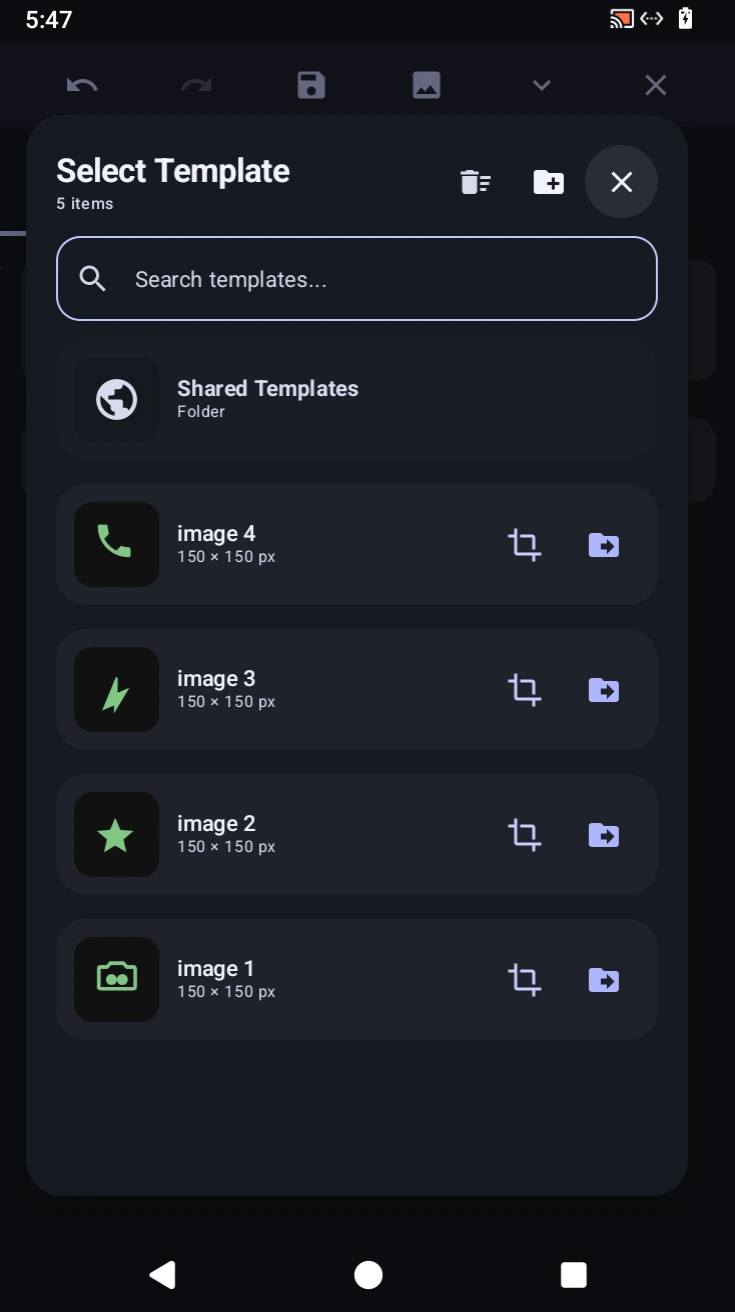
The Template Manager stores and organises all your image templates. These templates can be used in image detection actions as well as in GScript. Press the button to open it.
Inside the Template Manager, you can manage your files, group templates into folders, and modify images. You can use the search bar at the top to quickly find any specific template.
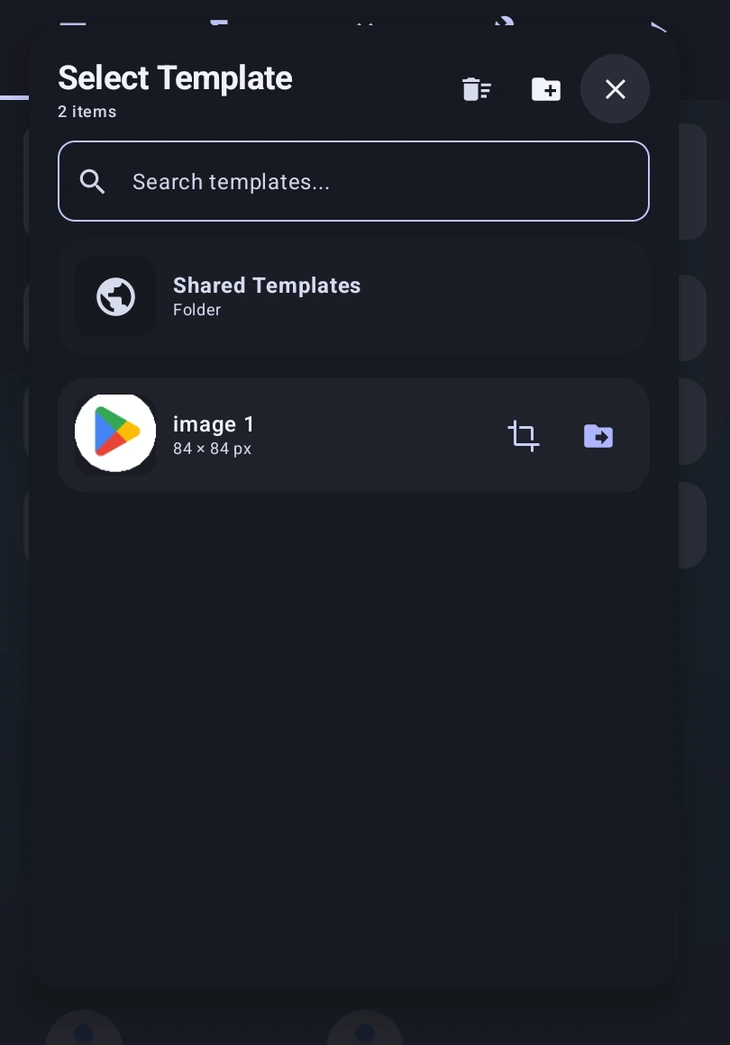
Templates are split into three groups:
- Current macro templates, the ones this macro uses.
- Shared Templates, available to every macro.
- Unassigned templates, captured but not yet belonging to anything.
Where a new capture goes depends on Isolate Templates Per Macro in : on (the default), each macro keeps its own; off, everything goes to Shared Templates.
Cleanup Unused  deletes templates that nothing uses.
Managing files and folders: Use the  button at the top right to create a new folder. To move a template into a folder, tap the Move to Folder button (the folder icon with a right arrow) on the right side of the template. You can tap any folder to open it.
Editing and deleting: Tap on the name of any template or folder to rename it. If you need to re-crop or edit the bounds of an existing image, press the  crop icon next to that template. To delete items, select them by pressing and holding, then tap the
  trash button at the top to delete all selected items. You can select multiple templates at once.
To close the Template Manager, press the button.