

Sequence
In the sequence tab, all click and swipe actions you added in edit mode are collected and organized. Here you can quickly configure them, reorder them, and even make them run simultaneously.
To open the sequence tab, press the  button.
To change the execution order of an action, press and hold it first. You can then move it up with  or move it down with
  . You can also select multiple actions by tapping other actions while at least one is already selected. Actions are executed from top to bottom, and the numbers are just labels to distinguish them from each other.
To delete actions, select the action(s) and press  . You can also cut and copy actions with
  and
and  , then paste them again with
  .
.
You can add waits by using the  button. Each action's initial delay and next action delay work too.
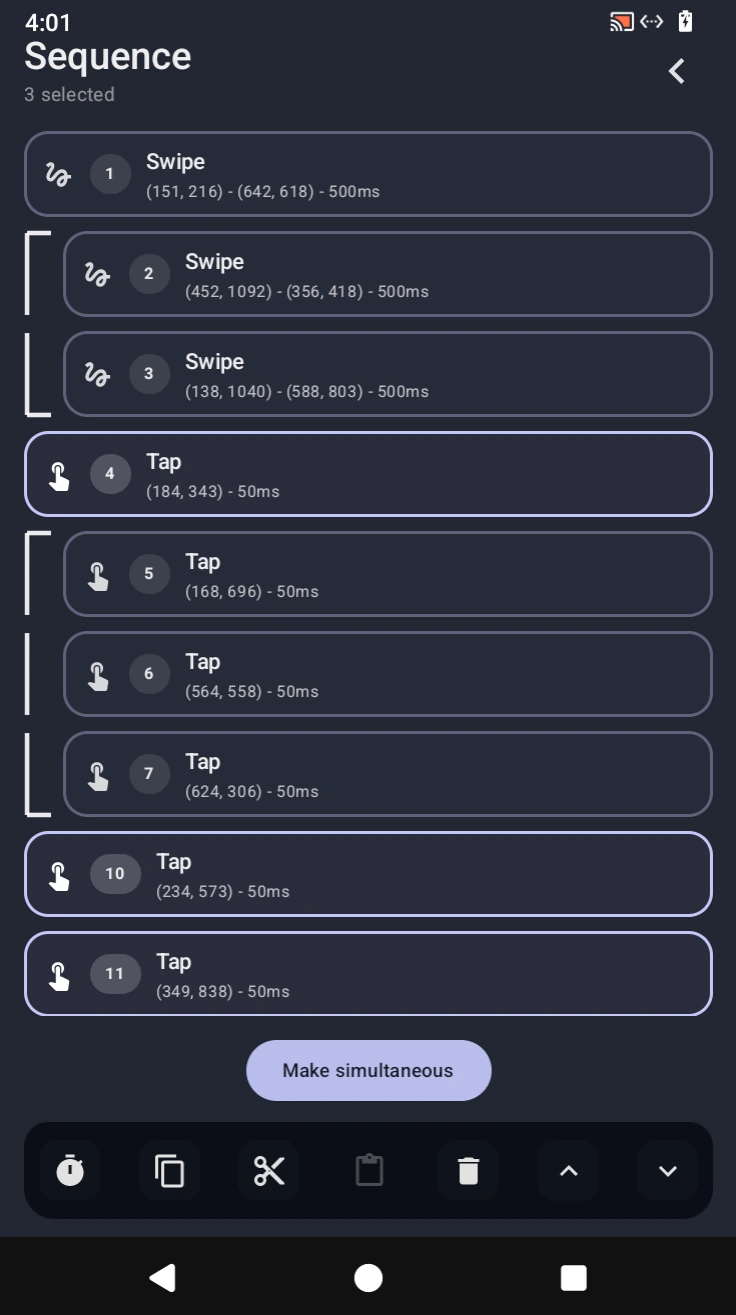
Simultaneous actions
Simultaneous actions let multiple clicks or swipes run at the same time instead of one after another.
To create them, first select multiple click or swipe actions in the sequence tab. Then press the Make simultaneous button that appears above the bottom controls. You can add a combination of clicks and swipes in a simultaneous group, but you cannot add waits. A simultaneous group can contain a maximum of 10 actions.
After creating a simultaneous group, the actions appear connected by  on the left side. This shows that those actions belong to the same group and will execute together.
To use or inspect the group, tap the to select the whole simultaneous group. If no other action is selected, tapping one action inside the group opens that specific action for configuration instead.
To move a whole simultaneous group, select the group first, then use or . If you select only some actions inside the group, only those selected actions move within the group.
To remove one action from a simultaneous group, select that action and press . You can also use the or buttons to simply move it out of the group without deleting it. To remove the simultaneous grouping itself, select the group and press . This breaks the group apart while keeping the actions inside it.