

Publishing your macros
Once you are , the Creator console in your account menu is where everything happens. It has four sections:
- Profile. Your public profile, picture and contact details. This is what people see next to your macros.
- My macros. Submit new listings and manage the ones you already have.
- Analytics. Downloads, likes and reward progress.
- Inbox. Review outcomes and notifications. When a submission is approved or rejected, you hear about it here.
Submitting a listing
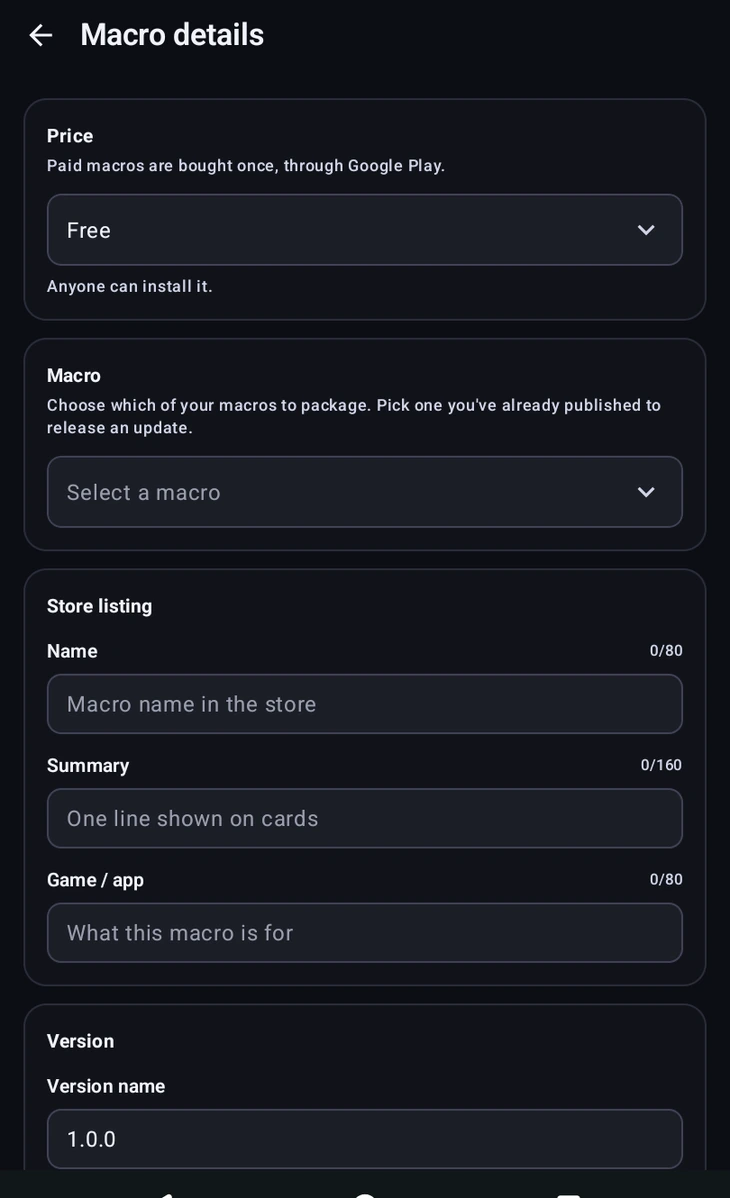
From My macros, open Macro details. Pick which of your macros to package. Choosing one you have already published turns the submission into an update instead of a new listing. Then fill in the store listing:
- Name (up to 80 characters). What it is called in the store.
- Summary (up to 160). The single line shown on store cards.
- Game / app (up to 80). What it is for; people search by this.
- Version name. A semantic version like
1.2.0. - Minimum app version. Set automatically to your MacroForge version.
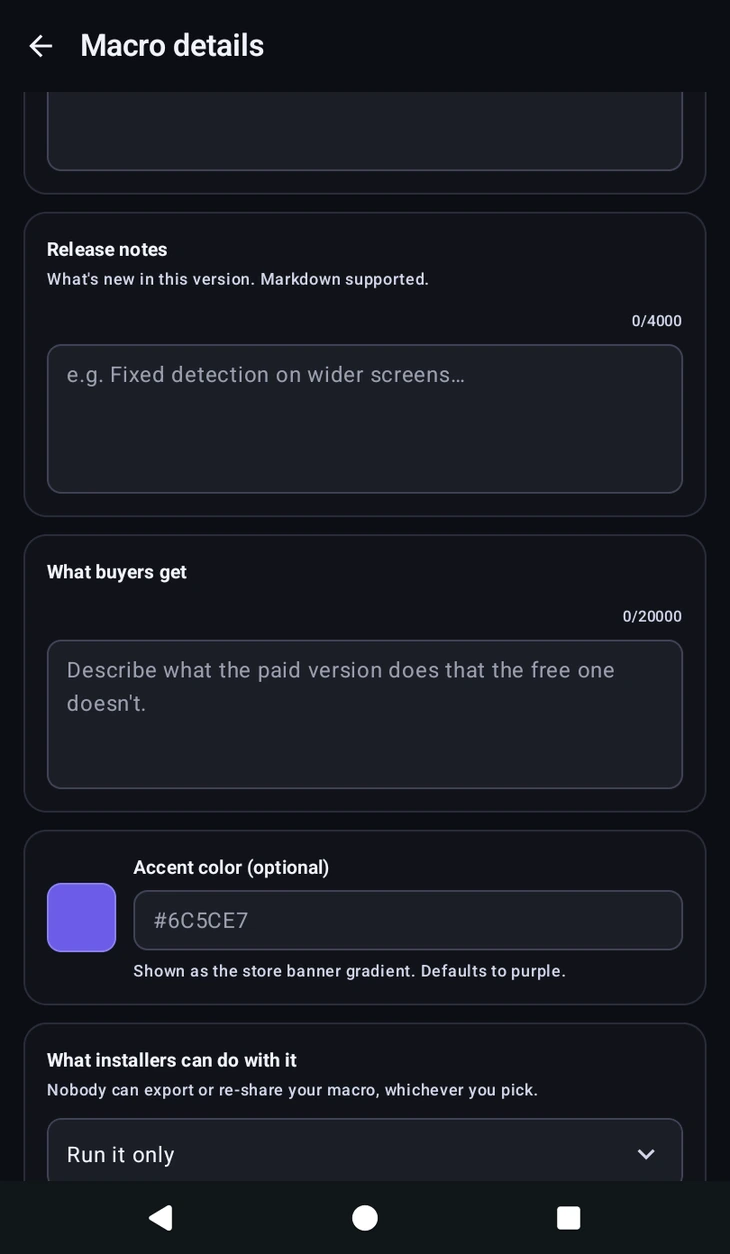
Then the rest of the listing:
- Price. Free, or one of five paid tiers. See .
- Icon. A square image for the store card.
- Description. What it does and how to use it. Markdown is supported, so headings and lists work.
- Release notes. What changed in this version, shown to existing users before they update. Also Markdown.
- Accent color. An optional
#RRGGBBthat becomes your listing's banner gradient. Defaults to purple. - What installers can do with it. Three choices, and nobody can export or re-share your macro whichever you pick: Run it only, they cannot open it; Read it, they can look but not change; Edit their own copy, they can change their installed copy and your updates replace it. Run it only is the default.
- Ask why people uninstall. Shows an optional one-tap question when someone removes your macro, and the answers appear in Analytics. This tells you whether people left because it did not work or because they were finished with it.
Preview listing shows exactly what a user will see before you commit. Then Submit for review.
Review states
Every listing carries a state you can see in My macros:
- In review. Waiting on a moderator.
- Published. Live in the store.
- Changes requested. Something needs fixing before it can go live. The Inbox will say what.
- Rejected. Not going live in its current form.
- Unpublished. Pulled from the store.
There is a 24 hour cooldown between submissions of the same listing, so fix everything the reviewer mentioned before resubmitting.
Analytics and rewards
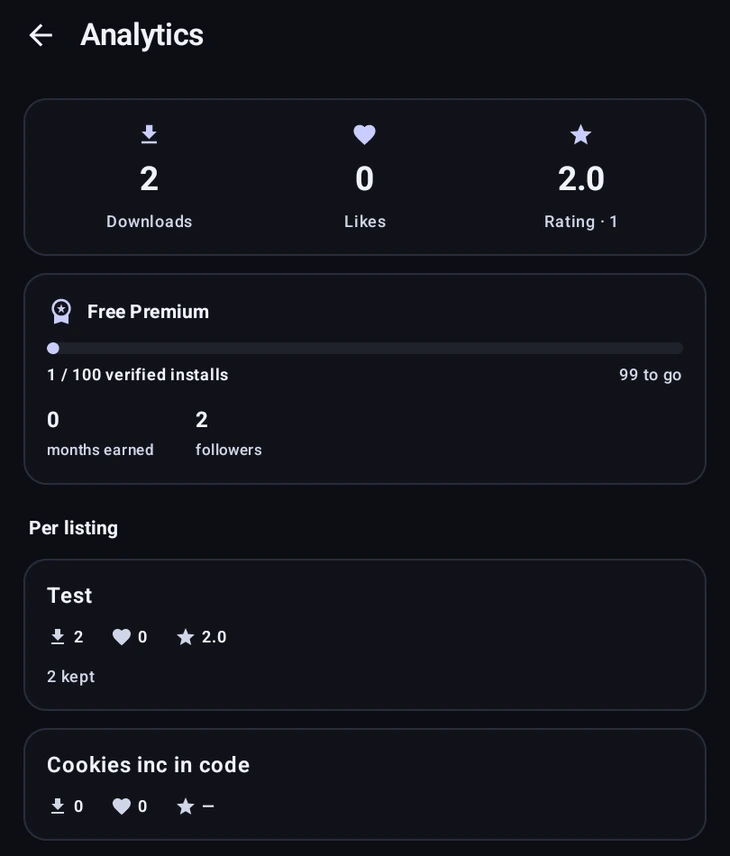
Analytics shows downloads, likes and your average rating, overall and per listing.
Underneath is Free Premium: every 100 verified installs earns you a free month of Premium, and the counter tells you how many you still need. Alongside it you can see your follower count and how many months you have earned so far.
If any of your listings is paid, a Sales panel appears too, with what you have earned all time, what is still on hold, and what is available to pay out. explains those three numbers and how to request the money.
With Ask why people uninstall on, Analytics also shows Why people removed it: how many kept it, how many removed it, and how many gave a reason.
Your profile
The Profile section is your public creator page: display name, picture, and an About you written in Markdown. Discord contact is required and shown publicly, it is how users reach you, and you must actually be in the MacroForge Discord or your profile is rejected.
Profile colors set the colour of your name and your banner. Some options unlock as you grow, the rainbow name appears once you pass a download threshold, and the screen tells you how far off you are.
Profile changes go through review and stay private until a moderator approves them. Preview profile shows how it will look.
Inbox and notifications
The Inbox can also notify you when someone reviews your macro or follows you. Both can be turned off under Notification settings.
Managing a published listing
- Request removal takes a listing down, but not instantly: it goes to a moderator with your reason, and stays live until they approve it. People who already installed it keep their copy. You can withdraw the request while it is pending.
- Delete removes the listing permanently. A listing still in review is also pulled from the queue.
- Copy to this device downloads your published macro onto this device, so you can recover it on a new phone.