
Settings Builder Overview
The Settings Builder allows you to construct a custom user interface that asks for input before a macro starts. You can access the Setting Builder through your macro's .

Core Properties
While each component in the Setting Builder has its own specific features, all interactive settings share a few fundamental properties:
- Label: The visible title or name of the setting that the user sees on the screen.
- Description: An optional subtext field where you can provide extra instructions or context about what the setting does.
- Variable Name: The underlying key used to store the user's choice. This is the variable name you will use in your macro's conditionals or GScript (e.g.,
mySpeedVar). Image Picker settings use two variables, one for the template and one for the search region.
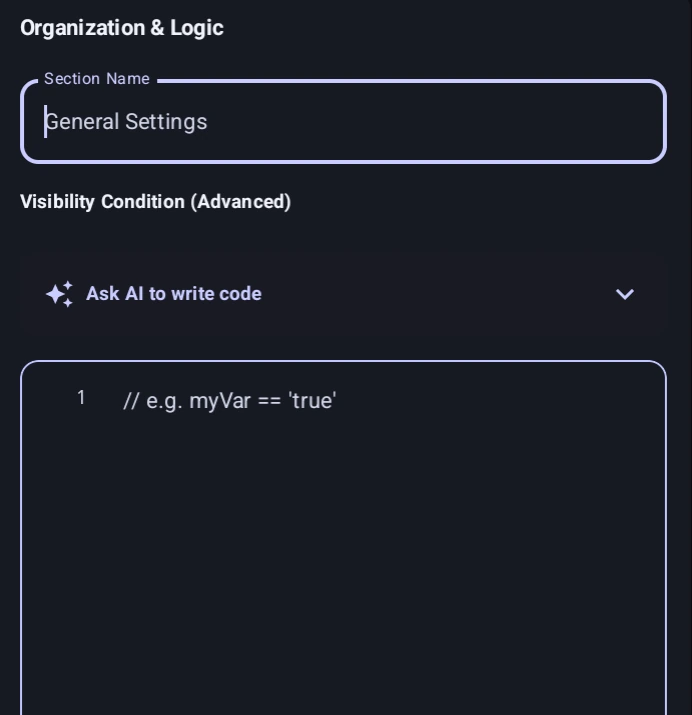
Organization & Logic
Settings can be assigned to different sections by providing a Section Name. This helps organize your settings menu visually by grouping related inputs together under a shared header.
Visibility Condition (Advanced): Shows the setting only while a condition is true, such as myVar == 'true' or mode == 'advanced' && runs > 5. It supports ==, !=, <, >, <=, >=, &&, ||, ! and parentheses. It is not GScript. The  icon can write the condition for you.
Available Components
Below are the different interactive components you can add to your Settings Builder.
Text Input
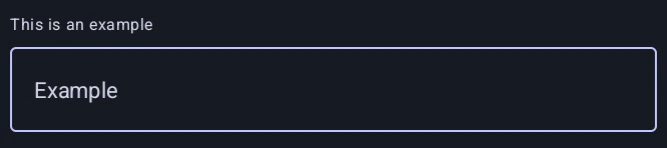
The general-purpose setting type for anything the user needs to type freely. Returns a String containing the exact text the user entered.
- Default Value: Initial text shown or stored when the user does not change it.
- Input Type: Restrict the device keyboard to `Text`, `Number`, or `Decimal`.
- Multi-line Input: Allow more than one line when text mode is selected.
Switch

A simple on/off toggle for enabling or disabling features. Returns a String that evaluates to 'true' or 'false'.
- Default State: Whether the switch starts toggled on or off when the macro opens.
Slider
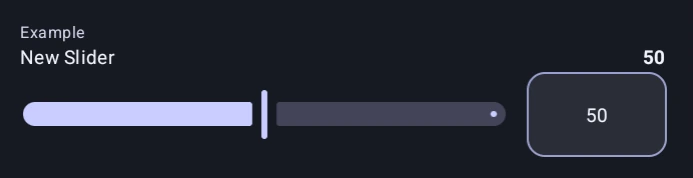
Allows the user to select a number within a specific range by sliding a handle. Returns a String representing the chosen number.
- Min / Max: The smallest and largest allowed values.
- Step: How much the slider moves per tick (e.g., a step of 10 means the user can only choose 10, 20, 30...).
- Default Value: Starting numeric value.
Radio Group
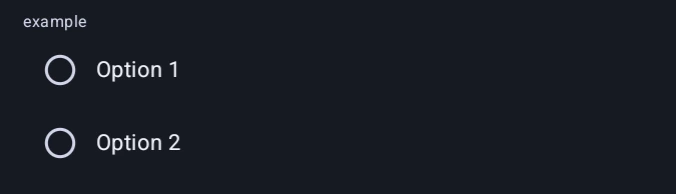
Use this when the user must choose exactly one option from a predefined list. Radio Groups display all available choices visibly on the screen. Returns a String matching the exact text of the chosen option.
- Options List: The choices the user can pick from.
- Default Selection: The option preselected when the macro opens.
Dropdown
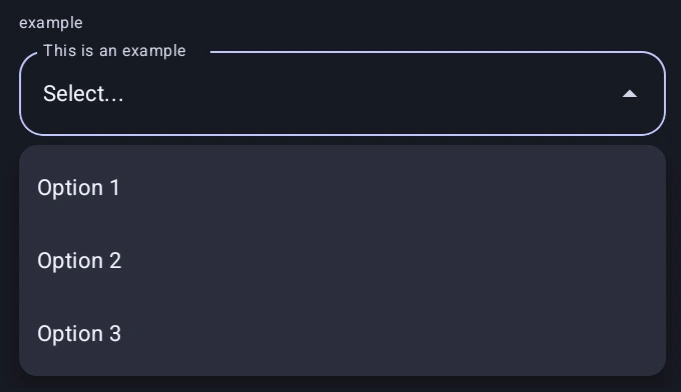
Functions exactly like a Radio Group, but hides the options in a collapsible menu to save vertical screen space. Best when you have many options. Returns a String matching the exact text of the chosen option.
- Options List: The choices the user can pick from.
- Default Selection: The option preselected when the macro opens.
Image Picker
Lets the user choose a template and a search region before the macro runs. Each value is written to its own variable.
- Template Variable Name: Stores the saved template file path (or a text default you author).
- Region Variable Name: Stores the search region as
x, y, w, h. - Default Template: A template name from the template manager. You can select one using the search button (
 ) in the textfield, or use a
 %variable%reference. - Default Search Region: Optional starting region before the user picks on screen.
At runtime the user can Select Template, Capture Template (region crop + save), or Pick Search Region on the live screen. The same tools used in image detection.
Tab Layout
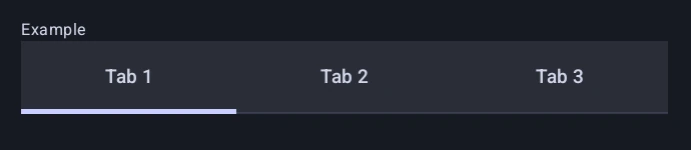
Groups your settings into horizontal tabs. Returns a String matching the title of the currently selected tab.
- Tabs: List of tabs to create.
- Contents: Settings placed inside each tab.
Page
Splits the setup form into a multi-step flow instead of one long scroll, so the user moves through it with Next and Previous buttons.
A Page is a break, not a container. Every setting after a Page belongs to it until the next Page, so Page “Target”, two settings, Page “Timing”, three settings gives two screens. Settings before the first Page form the opening step, and empty steps are skipped.
- Label: The page title.
- Visibility Condition: Removes the break when it is false.
A false condition removes the break, not the settings after it; they join the previous step. To hide them too, give them the same condition.
Pages have no variable and cannot be used inside a Tab Layout. Use them for long forms.
Record
Asks the user to record a gesture, taps and swipes, while the setup form is open, and stores what they captured in a variable. Point a action at that variable using its Advanced toggle and the macro plays back whatever they recorded, not what you did.
- Label: The title shown above the Record button.
- Variable Name: Where the captured recording is stored.
- Required: Blocks the form until something has actually been recorded.
This lets each user record their own gesture, such as a drag path across their inventory. Record is only available on the macro setup screen and needs the accessibility service.
Code
An authoring tool rather than a setting. Write Setting.builder() GScript here to generate settings programmatically, then press Apply to merge the result into your settings list as normal editable rows. It is never shown to the user at runtime.
Useful for repetitive forms, such as twelve similar sliders. The region helper lets you pick a region on screen and copy its coordinates straight into your builder script. See the for the full builder API.
Visual Elements
The builder also provides purely visual elements that do not return any variables. These are used to structure your UI:
- Header: A large, bold title to section off parts of your settings page.
- Text: A block of text used to provide detailed instructions or warnings to the user.
- Divider: A simple horizontal line to visually separate components.
Code Equivalent
let settings = Setting.builder();

// Add a text input for the number of runs
settings.add("runs", EditText().hint("Number of runs").text("10").method(1));

// Add a slider for delay
settings.add("delay", Slider().min(100).max(5000).value(1000).label("Delay (ms)"));

// Add a checkbox
settings.add("autoHeal", Checkbox().text("Auto-Heal Enabled").checked(true));

// Image picker: template + search region variables
settings.add("iconTemplate", ImagePicker()
  .hint("Target icon")
  .regionKey("iconRegion")
  .regionDefault("0, 0, 1080, 1920"));

// Show the menu to the user
let dialog = settings.build();
if (dialog.show()) {
  // If the user clicks 'OK', their choices are automatically saved!
  console.log("User selected " + getVar("runs") + " runs with " + getVar("delay") + "ms delay.");
}