

Share Center & cloud sync
The  button on the home screen opens Share Center. It does two separate jobs that happen to live together: passing macros between people, and keeping your own macros backed up. Both are features.
It has three tabs, Send, Receive and Sync.
Your username
Sharing is addressed by username, not by email, so you have one whether you have thought about it or not. You pick it when you sign up, there is a Randomize username button if nothing comes to mind, and it is what other people see on macros you share and on the you write.
It cannot be changed later, so it is worth two seconds of thought at sign-up rather than none.
Sending a macro
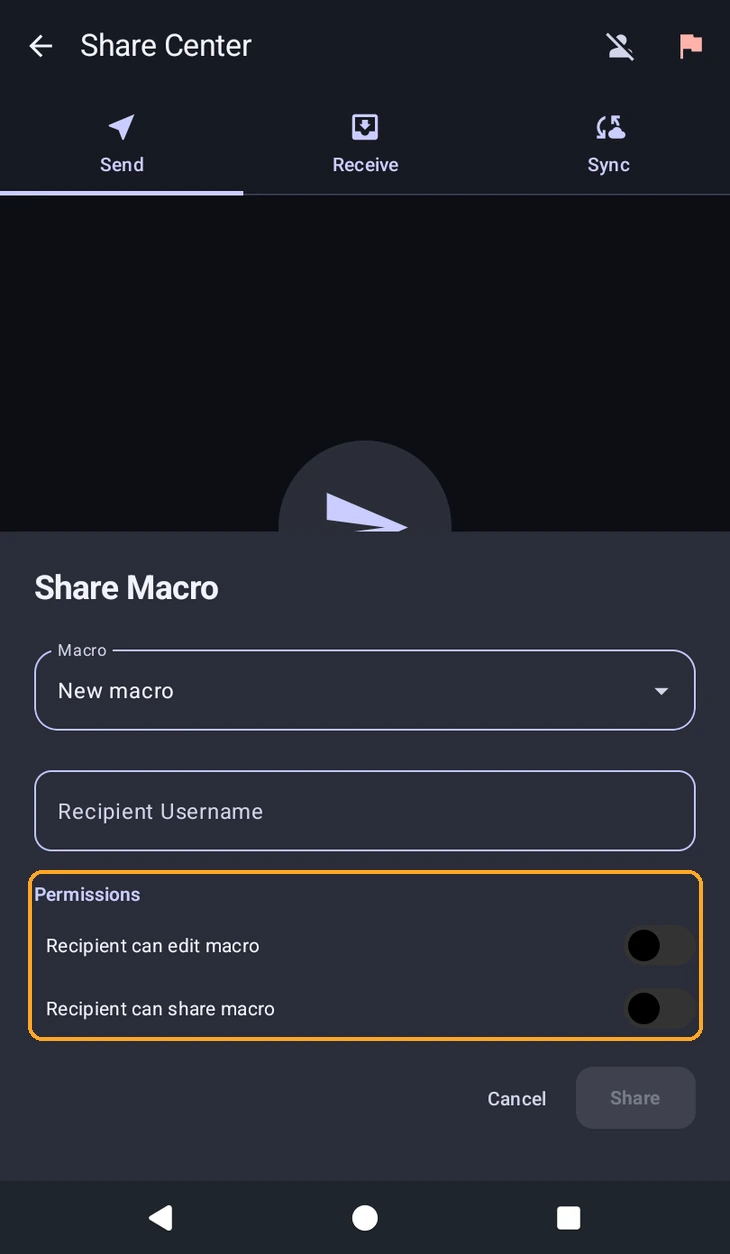
On the Send tab, pick the macro, type the Recipient Username, and choose what they are allowed to do with it:
- Recipient can edit macro. Off, they can run it but not open it up.
- Recipient can share macro. Off, the chain stops with them and they cannot pass it on.
Both are off unless you turn them on, which is the right default: sending someone a macro is not the same as giving them the source. If you are sending work you would rather people did not redistribute, leave the second one alone.
Macros using Http, WebSocket or File cannot be shared at all. That is deliberate, they reach outside the app, and the app tells you which call is blocking it rather than failing quietly.
Receiving
Incoming macros land on the Receive tab and import in one tap. You can  report a user who breaks the rules, and
  block one, which stops them sending you anything further. Blocked users are listed on their own screen so you can unblock later.
Cloud sync
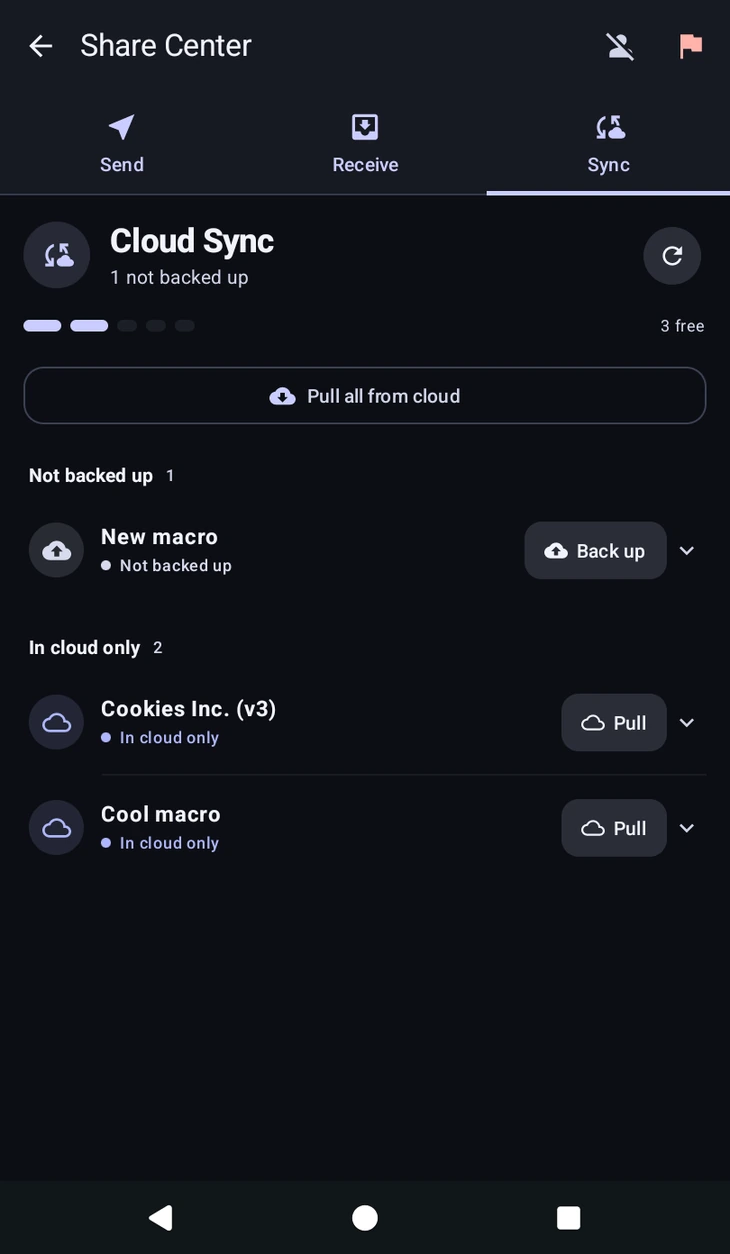
The Sync tab is your cloud vault: a backup of your macros that restores onto any device you sign in to. This is the answer to reinstalling the app, switching phones, or a macro you spent an evening on going missing.
Every macro shows where it stands:
- In sync, both copies match.
- Device edits not backed up, you changed it here and have not pushed it up yet.
- Cloud version newer, another device pushed a change you do not have.
- In cloud only, it exists in the vault but not on this device. Pull brings one down, and Pull all from cloud at the top does the lot.
- Conflict, needs review, covered below.
Delete from cloud removes a macro from the vault and keeps the copy on this device, which is the safe direction. There is a storage limit on the vault, and the app says so plainly when you reach it rather than silently dropping a backup.
Conflicts
A conflict means both copies changed since the last sync, usually because you edited the same macro on two devices. MacroForge will not guess which one you meant, so it stops and asks.
The dialog shows both sides with the time each was updated, and you pick Use Cloud or Keep Device. Read the dates before choosing, the newer one is not always the one you want, and the version you do not pick is replaced.
The simplest way to never see this is to let a device finish syncing before you start editing on another one.